Q. Deleted the Unread folder.
Solution.The Unread Mail folder is one of Outlook's default Search Folders (Search Folders: Virtual folders that contain views of all e-mail items matching specific search criteria. The items remain stored in one or more Outlook folders.). If deleted, you can create it again.
In Mail, on the File menu, point to New, and then click Search Folder.
Tip You can also open the New Search Folder dialog box by pressing CTRL+SHIFT+P.
In the Reading Mail section, click Unread Mail.
Click OK.
Thursday, August 18, 2011
Tuesday, July 19, 2011
Laptop is flashing at me
Q. I'm using a Dell Inspiron B130 PC Notebook.)
Yesterday when I booted up my computer, one of the four normally green lights at the bottom of my computer (below the keyboard) started flashing red/orange at me. Since the computer didn't give me any error messages, I figured it was something I did shutting down or starting up, so I re-started and the problem seemed to go away, as the light went back to green.
However, today, I've been using the computer and surfing the internet for over an hour and the light started up again a few minutes ago, seemingly out of nowhere. I haven't done anything differently and it still won't give me error messages, so I have no idea what kind of problem the light could be indicating or even if it's just the light on it's own. Obviously I'm concerned about it, but since I don't know what it is I thought it might be something I want to be aware of, and I don't want to just re-start my computer every time I see this if it is something important.
Hopefully this is in the right place -- Honestly, I have no idea, because this site just came up when I typed the problem into google, so I'm just trying.
Solution
If the computer is connected to an electrical outlet, the Battery light operates as follows:
- Solid green: The battery is charging.
- Flashing green: The battery is almost fully charged.
If the computer is running on a battery, the light operates as follows:
- Off: The battery is adequately charged (or the computer is turned off).
- Flashing orange: The battery charge is low.
- Solid orange: The battery charge is critically low
I think it overheated as I left it on the bed still on while I went away and did somehting else. The lights were 3 or four amber flashes followed by a green one. It drove me crazy. In the end I fully discahrged the battery and put it in the fridge overnight. I then charged it up and hey presto problem fixed. I hope this helps you as I'm not sure what type of computer you have.
Yesterday when I booted up my computer, one of the four normally green lights at the bottom of my computer (below the keyboard) started flashing red/orange at me. Since the computer didn't give me any error messages, I figured it was something I did shutting down or starting up, so I re-started and the problem seemed to go away, as the light went back to green.
However, today, I've been using the computer and surfing the internet for over an hour and the light started up again a few minutes ago, seemingly out of nowhere. I haven't done anything differently and it still won't give me error messages, so I have no idea what kind of problem the light could be indicating or even if it's just the light on it's own. Obviously I'm concerned about it, but since I don't know what it is I thought it might be something I want to be aware of, and I don't want to just re-start my computer every time I see this if it is something important.
Hopefully this is in the right place -- Honestly, I have no idea, because this site just came up when I typed the problem into google, so I'm just trying.
Solution
If the computer is connected to an electrical outlet, the Battery light operates as follows:
- Solid green: The battery is charging.
- Flashing green: The battery is almost fully charged.
If the computer is running on a battery, the light operates as follows:
- Off: The battery is adequately charged (or the computer is turned off).
- Flashing orange: The battery charge is low.
- Solid orange: The battery charge is critically low
I think it overheated as I left it on the bed still on while I went away and did somehting else. The lights were 3 or four amber flashes followed by a green one. It drove me crazy. In the end I fully discahrged the battery and put it in the fridge overnight. I then charged it up and hey presto problem fixed. I hope this helps you as I'm not sure what type of computer you have.

Why won't the "critical battery" light on my laptop stop blinking?
Q. I unplugged my laptop and sat with it on my lap for a good 2 hours today...I noticed just barely that my battery was really low and the "critical battery" light was flashing. I plugged it in, but the light didn't stop blinking. This happened to me once before and so I waited until it was fully charged and ran the battery out again and it corrected itself. I've done this technique twice now and it's not corrected the problem. It's annoying me because I keep noticing the blinking light. I've tried taking the battery out and that stops the blinking for a minute or two, but then it starts again...same when I put the battery back in. Tonight I will shut the computer down and see if that fixes it. Any suggestions?
Solution
Sounds like your battery is suffering from the memory effect
To quote...
Almost anyone who uses rechargeable batteries has heard of the memory effect problem.
For those who have not heard of this problem it is commonly believed that when rechargeable batteries are not fully discharged between charge cycles that they remember the shortened cycle and are thus reduced in capacity (length of use per charge).
Little known facts:
* 'Memory Effect' is the common term used to replace the more accurate term 'Voltage Depression.'
* Voltage Depression is more a problem with incorrect charging than a battery problem.
* Voltage Depression does not necessarily permanently damage a battery. It can most likely be corrected by fully charging and discharging the battery.
* Voltage Depression ('Memory Effect') is often incorrectly used to explain low battery capacity that should be attributed to other problems, such as inadequate charging, overcharge, or exposure to high temperatures.
* Voltage Depression can be affected by the discharge rate of a battery. Generally speaking, the depth of discharge will be less on discharges at the higher rates. This increases the capacity loss as less of the active material in the battery is cycled.
...
Suggestions. Buy a new battery or if still under warranty contact your manufacturer.
If it's not under warranty and you are adventurous you could try the old tester light experiment... it's not hard but you need a bit of knowledge.
What you do is you find an old current tester, like an electrician would use to see if an outlet was working. I said 'old' because you want one with an little incandescent bulb (they use more electricity). Then you take the tester and connect it to the terminals of your batter (laying them on and taping in place) and leaving it to sit until the bulb doesn't come on anymore.
As I said it's an old fix and doesn't always work, your battery could be shot. But I have known it to work a few times.
But in the long run if you are going to keep this laptop, drop the $ on a new battery, you will be much happier.
Sources: http://www.zbattery.com/Battery-Memory-Effect
Solution
Sounds like your battery is suffering from the memory effect
To quote...
Almost anyone who uses rechargeable batteries has heard of the memory effect problem.
For those who have not heard of this problem it is commonly believed that when rechargeable batteries are not fully discharged between charge cycles that they remember the shortened cycle and are thus reduced in capacity (length of use per charge).
Little known facts:
* 'Memory Effect' is the common term used to replace the more accurate term 'Voltage Depression.'
* Voltage Depression is more a problem with incorrect charging than a battery problem.
* Voltage Depression does not necessarily permanently damage a battery. It can most likely be corrected by fully charging and discharging the battery.
* Voltage Depression ('Memory Effect') is often incorrectly used to explain low battery capacity that should be attributed to other problems, such as inadequate charging, overcharge, or exposure to high temperatures.
* Voltage Depression can be affected by the discharge rate of a battery. Generally speaking, the depth of discharge will be less on discharges at the higher rates. This increases the capacity loss as less of the active material in the battery is cycled.
...
Suggestions. Buy a new battery or if still under warranty contact your manufacturer.
If it's not under warranty and you are adventurous you could try the old tester light experiment... it's not hard but you need a bit of knowledge.
What you do is you find an old current tester, like an electrician would use to see if an outlet was working. I said 'old' because you want one with an little incandescent bulb (they use more electricity). Then you take the tester and connect it to the terminals of your batter (laying them on and taping in place) and leaving it to sit until the bulb doesn't come on anymore.
As I said it's an old fix and doesn't always work, your battery could be shot. But I have known it to work a few times.
But in the long run if you are going to keep this laptop, drop the $ on a new battery, you will be much happier.
Sources: http://www.zbattery.com/Battery-Memory-Effect
Laptop Battery Out - Laptop's Battery not Charging
Q. I left my laptop on, because I took my other computer to the technician for a check-up (some of you might remember what happened to that computer) and so the battery of the laptop was not being charged, so the battery was dead, because I didn't put on the adapter. Now, a whole new problem has arised. The laptop is not charging even when it is turned off. I tried to switch the adapter to several different plugs, but the charge light was still not going on. I tried to turn on the laptop but after 5-10 seconds, it quickly turned off. It feels as if the laptop is dead. I am not sure, how to bring the battery back to life. Can anyone please help?
Solution:
buying a new battery, then trying it in the laptop and seeing if it will charge. If it does then that means your current batter is toast and needs to be disposed of, if it doesn't charge it either means you have a bad AC adapter or the internal charging system of your laptop is bad. At that point I would suggest taking it in and having it looked at by a tech and then decide if you want to try to have what every is wrong fixed/replaced or getting a new laptop.
Solution:
buying a new battery, then trying it in the laptop and seeing if it will charge. If it does then that means your current batter is toast and needs to be disposed of, if it doesn't charge it either means you have a bad AC adapter or the internal charging system of your laptop is bad. At that point I would suggest taking it in and having it looked at by a tech and then decide if you want to try to have what every is wrong fixed/replaced or getting a new laptop.
Thursday, June 30, 2011
Add in Send To
Q. Is there a way to send a file to a place that isn’t listed on my “Send To” menu?
Solutions
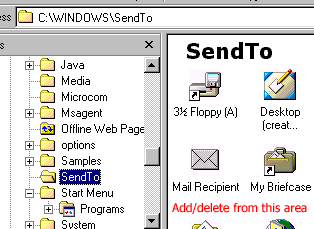
If you want to add a place or eliminate an item on the “Send to” menu that you don’t use it isn’t that hard to do:
1. Right-click your Start Button, Explore.
2. Head to the Windows\Send to\ folder (it’s probably just above the folder you landed in when Explorer opened).
Special Note for XP users:
If you’re using Win XP, you’ll need to make sure you have your computer set to Show Hidden Files and Folders . You can do this under Explorer by hitting the Tools menu, Folder Options . Next hit the View tab. You’ll see an option for “Show Hidden Files and Folders” there. Select that and hit OK. You’ll be able to see the Send To menu under the Documents and Settings/USER NAME folder (The USER NAME is the name you use for your custom settings on XP).
3. To remove items you don’t want listed on the menu, just delete them. To add items, just drag their shortcut to the folder (I drag them right from the desktop / taskbar). Note that you want to use your RIGHT mouse button to do this. If you drag with your left mouse button, you may remove the shortcut from it’s original location. If you right-click and drag, when you release you get a handy little menu that lets you choose to copy, move, etc. Choose Copy .
As a quick for instance, I didn’t have MS Word as an option in my ” Send to ” menu, so I dragged and dropped its little shortcut icon into the Send to folder. I now have the option of sending something to MS Word.
Please note that you can’t use this menu to “force” a program to open a particular type of file. If you’re trying to make Outlook Express open a DLL file, it just ain’t gonna work.
You can also add a folder shortcut to your “Send To” menu, giving you the ability to send files to that folder quickly and easily. I know it’s sounds a little complicated, but you’ll see what I mean.
1. Right-Click your Start button, Explore .
2. Head to your Windows\Send to\ folder (it’s probably just above the folder you’re currently in).
Again, if you’re using Win XP, you’ll need to make sure you have your computer set to Show Hidden Files and Folders .
3. Use your RIGHT mouse button (yes the right one) to drag a folder to your Send To folder.
4. You’ll get a menu that will give you several options, including
Solutions
If you want to add a place or eliminate an item on the “Send to” menu that you don’t use it isn’t that hard to do:
1. Right-click your Start Button, Explore.
2. Head to the Windows\Send to\ folder (it’s probably just above the folder you landed in when Explorer opened).

Special Note for XP users:
If you’re using Win XP, you’ll need to make sure you have your computer set to Show Hidden Files and Folders . You can do this under Explorer by hitting the Tools menu, Folder Options . Next hit the View tab. You’ll see an option for “Show Hidden Files and Folders” there. Select that and hit OK. You’ll be able to see the Send To menu under the Documents and Settings/USER NAME folder (The USER NAME is the name you use for your custom settings on XP).
3. To remove items you don’t want listed on the menu, just delete them. To add items, just drag their shortcut to the folder (I drag them right from the desktop / taskbar). Note that you want to use your RIGHT mouse button to do this. If you drag with your left mouse button, you may remove the shortcut from it’s original location. If you right-click and drag, when you release you get a handy little menu that lets you choose to copy, move, etc. Choose Copy .
As a quick for instance, I didn’t have MS Word as an option in my ” Send to ” menu, so I dragged and dropped its little shortcut icon into the Send to folder. I now have the option of sending something to MS Word.
Please note that you can’t use this menu to “force” a program to open a particular type of file. If you’re trying to make Outlook Express open a DLL file, it just ain’t gonna work.
You can also add a folder shortcut to your “Send To” menu, giving you the ability to send files to that folder quickly and easily. I know it’s sounds a little complicated, but you’ll see what I mean.
1. Right-Click your Start button, Explore .
2. Head to your Windows\Send to\ folder (it’s probably just above the folder you’re currently in).
Again, if you’re using Win XP, you’ll need to make sure you have your computer set to Show Hidden Files and Folders .
3. Use your RIGHT mouse button (yes the right one) to drag a folder to your Send To folder.
4. You’ll get a menu that will give you several options, including
Thursday, June 9, 2011
UPS Not Working
UPS not working, need help.?
1. Hey guys, my ups turns on my computer, but if there a power failure even for 1 sec, it turns off the whole system. If i turn of the monitor power it will hang on for few sec and then turn off again.
I upgraded my computer last month b4 that my ups was working fine.
My new upgrade
AMD athlon 2x 4 2.6 ghz 620 ( overclocked it to 3.0 ghz)
Asrock n-68s
2gb ram
ATi radeon 4670 512 ddr3
19" crt montor (Didnt upgrade)
80 gb hdd (DIDnt upgrade)
lg dual layer dvd writer.(Didnt upgrade)
Do you think my UPS is spoiled or this is happening dude to the less watt output by UPS then my computer which is using at the moment. I have a 450w smps and i guess my computer is using all of the 450 w.
My UPS model- APC black-UPS ES 500
I am really having hard time playing multiplayer games, cause there is too much of powercut now and then. most of the powe cuts are just for few sec.
So guys do you think my ups is soiled or does it have a low watt capacity, which is causing the problem.
If i have to change the UPS, can u guys suggest me a "CHEAP" UPS which can handle my computer. please suggest me APC+ other models
Solution
According to the manual the yellow light indicates that the UPS is supplying power from the battery. When plugged into the mains, the green light should be lit.
You didn't mention if you tried it with the mains connected. If it works in this mode, it may simply be a case of a dead battery.
Even with a non working battery, a UPS make a terrific line filter. Replacement batteries are advertised at less than 20 USD.
2. Ups not working
To switch the UPS on, you need to press and hold the on/off/test button for more than a second. Until the green light comes on.
3. Setting up UPS (NOT WORKING!)
So I have been trying to figure this blasted thing out and am now to the point where I need to ask for help. I have read other threads, but they do not seem to help thus far.
I am trying to set up the stupid calculator. I have played around with the UPS module and the UPS (XML) module. All I get are errors when I try and test the purchase of a product...
Solution
UPSXML Rates Error:
Rating and Service
1.0001
0
An unknown error occured while attempting to contact the UPS gateway
:
Rating and Service
1.0001
0
An unknown error occured while attempting to contact the UPS gateway
1. Hey guys, my ups turns on my computer, but if there a power failure even for 1 sec, it turns off the whole system. If i turn of the monitor power it will hang on for few sec and then turn off again.
I upgraded my computer last month b4 that my ups was working fine.
My new upgrade
AMD athlon 2x 4 2.6 ghz 620 ( overclocked it to 3.0 ghz)
Asrock n-68s
2gb ram
ATi radeon 4670 512 ddr3
19" crt montor (Didnt upgrade)
80 gb hdd (DIDnt upgrade)
lg dual layer dvd writer.(Didnt upgrade)
Do you think my UPS is spoiled or this is happening dude to the less watt output by UPS then my computer which is using at the moment. I have a 450w smps and i guess my computer is using all of the 450 w.
My UPS model- APC black-UPS ES 500
I am really having hard time playing multiplayer games, cause there is too much of powercut now and then. most of the powe cuts are just for few sec.
So guys do you think my ups is soiled or does it have a low watt capacity, which is causing the problem.
If i have to change the UPS, can u guys suggest me a "CHEAP" UPS which can handle my computer. please suggest me APC+ other models
Solution
According to the manual the yellow light indicates that the UPS is supplying power from the battery. When plugged into the mains, the green light should be lit.
You didn't mention if you tried it with the mains connected. If it works in this mode, it may simply be a case of a dead battery.
Even with a non working battery, a UPS make a terrific line filter. Replacement batteries are advertised at less than 20 USD.
2. Ups not working
To switch the UPS on, you need to press and hold the on/off/test button for more than a second. Until the green light comes on.
3. Setting up UPS (NOT WORKING!)
So I have been trying to figure this blasted thing out and am now to the point where I need to ask for help. I have read other threads, but they do not seem to help thus far.
I am trying to set up the stupid calculator. I have played around with the UPS module and the UPS (XML) module. All I get are errors when I try and test the purchase of a product...
Solution
UPSXML Rates Error:
Rating and Service
1.0001
0
An unknown error occured while attempting to contact the UPS gateway
:
Rating and Service
1.0001
0
An unknown error occured while attempting to contact the UPS gateway
Computer is Slow
1. Why is my computer so slow?
Solution
There are many things that can cause a slow computer such as a virus, spyware, or hard drive fragmentation. Registry problems are one of the most common reasons for a slow PC. Registry problems are accumulated as a result of installing and uninstalling programs which ultimately have a negative effect on the operation of Windows. To fix of all these Registry errors, and get your computer back in shape, we would strongly recommend you use RegistryBooster.
2. How to Speed Up a Slow Windows Computer for Free
Solution
Windows PCs typically slow down as applications are installed and used. Whether using word processing, spreadsheets, internet, games or anything else, hard drives fill with temporary files that do not always get removed when no longer needed. Usually conducting disk defrag, registry defrag and cleaning system junk and hidden errors in Windows registry with some powerful tool such as freeware such as Ccleaner toolbox, Wise Registry Cleaner or Wise Disk Cleaner or purchase something to clean up/speed up a slow computer. Read on to learn of ways to help keep a PC running smoothly with little or no money.
2Turn off unneeded Desktop Features that try to make things look better. The fancy rounded window corners, the way the menus fade in and out, and the 3-D button styles on modern Desktops can overwhelm older machines. To turn off these appearance only enhancements:
Windows XP - right click on My Computer, and choose the Properties option, then choose the Advanced tab, and click the Settings button under the Performance section. In the Performance Options dialogue that comes up, go to the Visual Effects tab, and choose "Adjust for best performance". You can also try the "Custom" option, and turn on and off individual settings to see which ones will work without slowing your machine down.
Vista - Click the Start button, then Control Panel, then choose System and Maintenance, then Performance Information and Tools. Click Adjust visual effects. If you are prompted for an administrator password or confirmation, type the password or provide confirmation. Click the Visual Effects tab, and choose "Adjust for best performance". You can also try the "Custom" option, and turn on and off individual settings to see which ones will work without slowing your machine down.
Windows 7 - Click the Start button, then Control Panel, and then System and Security. When you see System, click on it and then Advanced system settings. From here you can make sure you're on the Advanced tab and click on Settings under Performance. Here, you can also choose Adjust for best performance or choose Custom if you'd like to compromise between fancy visuals and performance. On a side note, this menu can be accessed much quicker by right-clicking on Computer, from either the Desktop or Start menu, selecting Properties, and then Advanced system settings.
3. My computer is running slow what steps can I do to fix it?
Solution
Cause
This issue can be caused by any of the below possibilities.
Not enough hard disk space.
Left over programs and bad files.
Data Corruption.
Missing Windows updates / Outdated drivers.
Computer is overheating.
Corrupt OS.
Bad Hardware.
Solution
Below are steps for Microsoft Windows users that should help speed up the computer or determine why the computer is running slow.
Reboot
If your computer has not been reboot recently make sure to reboot it before following any of the below steps.
Not enough hard disk drive space
Verify that there is at least 200-500MB of free hard disk drive space. This available space allows the computer to have room for the swap file to increase in size as well as room for temporary files.
Determining available hard drive space.
Regaining computer hard disk drive space.
Hard drive corrupted or fragmented
Run ScanDisk or something equivalent to verify there is nothing physically wrong with the computer hard disk drive.
Run Defrag to help ensure that data is arranged in the best possible order.
Background programs
Remove or disable any TSRs and startup programs that automatically start each time the computer boots.
To see what programs are running in the background and how much memory and CPU they are using open Task Manager. If you are running Windows 7 run Resmon to get a better understanding of how your computer is being used.
If you've got an anti-virus scanner on the computer, spyware protection program, or other security utility make sure it's not scanning your computer in the background. Often when these programs begin to scan the computer it can decrease the overall performance of your computer.
Scan for malware
Today, spyware and other malware is a big cause of many computer problems including a slow computer. Even if an anti-virus scanner is installed on the computer we recommend running a malware scan on the computer. Use the free version of Malwarebytes to scan your computer for malware.
Hardware conflicts
Verify that the Device Manager has no conflicts. If any exist resolve these issues as they could be the cause of your problem.
Update Windows
Make sure you have all the latest Windows updates installed in the computer.
If you are on the Internet when your computer is slow also make sure all browser plugins are up-to-date.
Update your drivers
Make sure you've got the latest drivers for your computer. Especially the latest video drivers. Having out-of-date drivers can cause an assortment of issues.
Computer or processor is overheating
Make sure your computer and processor is not overheating, excessive heat can cause a significant decrease in computer performance some processors will even lower the speed of the processor automatically to help compensate for the heat related issues.
What temperature should my processor be running at?
Dust, dirt, and hair can also constrict a proper air flow on your computer, which can also cause a computer to overheat. Make sure your computer case is clean and fans are not obstructed.
Steps on cleaning your computer.
Memory upgrade
If you've had your computer for more than one year it's likely you're computer is not meeting the memory requirements for today. Today, we suggest at a minimum the computer have 1GB of memory.
Determining how much RAM is installed and available.
Solution
There are many things that can cause a slow computer such as a virus, spyware, or hard drive fragmentation. Registry problems are one of the most common reasons for a slow PC. Registry problems are accumulated as a result of installing and uninstalling programs which ultimately have a negative effect on the operation of Windows. To fix of all these Registry errors, and get your computer back in shape, we would strongly recommend you use RegistryBooster.
2. How to Speed Up a Slow Windows Computer for Free
Solution
Windows PCs typically slow down as applications are installed and used. Whether using word processing, spreadsheets, internet, games or anything else, hard drives fill with temporary files that do not always get removed when no longer needed. Usually conducting disk defrag, registry defrag and cleaning system junk and hidden errors in Windows registry with some powerful tool such as freeware such as Ccleaner toolbox, Wise Registry Cleaner or Wise Disk Cleaner or purchase something to clean up/speed up a slow computer. Read on to learn of ways to help keep a PC running smoothly with little or no money.
2Turn off unneeded Desktop Features that try to make things look better. The fancy rounded window corners, the way the menus fade in and out, and the 3-D button styles on modern Desktops can overwhelm older machines. To turn off these appearance only enhancements:
Windows XP - right click on My Computer, and choose the Properties option, then choose the Advanced tab, and click the Settings button under the Performance section. In the Performance Options dialogue that comes up, go to the Visual Effects tab, and choose "Adjust for best performance". You can also try the "Custom" option, and turn on and off individual settings to see which ones will work without slowing your machine down.
Vista - Click the Start button, then Control Panel, then choose System and Maintenance, then Performance Information and Tools. Click Adjust visual effects. If you are prompted for an administrator password or confirmation, type the password or provide confirmation. Click the Visual Effects tab, and choose "Adjust for best performance". You can also try the "Custom" option, and turn on and off individual settings to see which ones will work without slowing your machine down.
Windows 7 - Click the Start button, then Control Panel, and then System and Security. When you see System, click on it and then Advanced system settings. From here you can make sure you're on the Advanced tab and click on Settings under Performance. Here, you can also choose Adjust for best performance or choose Custom if you'd like to compromise between fancy visuals and performance. On a side note, this menu can be accessed much quicker by right-clicking on Computer, from either the Desktop or Start menu, selecting Properties, and then Advanced system settings.
3. My computer is running slow what steps can I do to fix it?
Solution
Cause
This issue can be caused by any of the below possibilities.
Not enough hard disk space.
Left over programs and bad files.
Data Corruption.
Missing Windows updates / Outdated drivers.
Computer is overheating.
Corrupt OS.
Bad Hardware.
Solution
Below are steps for Microsoft Windows users that should help speed up the computer or determine why the computer is running slow.
Reboot
If your computer has not been reboot recently make sure to reboot it before following any of the below steps.
Not enough hard disk drive space
Verify that there is at least 200-500MB of free hard disk drive space. This available space allows the computer to have room for the swap file to increase in size as well as room for temporary files.
Determining available hard drive space.
Regaining computer hard disk drive space.
Hard drive corrupted or fragmented
Run ScanDisk or something equivalent to verify there is nothing physically wrong with the computer hard disk drive.
Run Defrag to help ensure that data is arranged in the best possible order.
Background programs
Remove or disable any TSRs and startup programs that automatically start each time the computer boots.
To see what programs are running in the background and how much memory and CPU they are using open Task Manager. If you are running Windows 7 run Resmon to get a better understanding of how your computer is being used.
If you've got an anti-virus scanner on the computer, spyware protection program, or other security utility make sure it's not scanning your computer in the background. Often when these programs begin to scan the computer it can decrease the overall performance of your computer.
Scan for malware
Today, spyware and other malware is a big cause of many computer problems including a slow computer. Even if an anti-virus scanner is installed on the computer we recommend running a malware scan on the computer. Use the free version of Malwarebytes to scan your computer for malware.
Hardware conflicts
Verify that the Device Manager has no conflicts. If any exist resolve these issues as they could be the cause of your problem.
Update Windows
Make sure you have all the latest Windows updates installed in the computer.
If you are on the Internet when your computer is slow also make sure all browser plugins are up-to-date.
Update your drivers
Make sure you've got the latest drivers for your computer. Especially the latest video drivers. Having out-of-date drivers can cause an assortment of issues.
Computer or processor is overheating
Make sure your computer and processor is not overheating, excessive heat can cause a significant decrease in computer performance some processors will even lower the speed of the processor automatically to help compensate for the heat related issues.
What temperature should my processor be running at?
Dust, dirt, and hair can also constrict a proper air flow on your computer, which can also cause a computer to overheat. Make sure your computer case is clean and fans are not obstructed.
Steps on cleaning your computer.
Memory upgrade
If you've had your computer for more than one year it's likely you're computer is not meeting the memory requirements for today. Today, we suggest at a minimum the computer have 1GB of memory.
Determining how much RAM is installed and available.
Subscribe to:
Posts (Atom)