Expert Solutions

Expert Solution Search

Loading

Expert Solution Finder

Monday, October 25, 2021

Windows 11 Microsoft.

Windows 11 is a Windows NT operating system from Microsoft, it was announced on June 24, 2021 and a successor of Windows 10. The operating system of Windows 10 was launched in 2015 and Windows 11 was released on October 5, 2021. It's a free upgrade from Windows updated to the system having windows 10 and windows 11 installation assistant on eligible devices.

Windows 11 features major changes to Windows shell including a design of Windows 10 as Start Menu, it has replaced the "live tiles' with a "Widgets" panel on the taskbar, has ability to created tiled sets of windows that can be minimized and restored from the taskbar as a group.

Microsoft has also increased the hardware requirements, before windows 10 can be installed on. It has now only supports updates on devices using eight generation intel core CPU or newer CPU based on Zen+ microarchitecture. Windows 11 has received some positive receptions and focused on requirements.


Monday, October 18, 2021

Windows 11 release and requirements of Windows 11, Windows 10 can be upgraded to Windows 11

Microsoft has released Windows 11 as a free upgrade means those who are using Windows 10 can upgrade to Windows 11. You will find out about the upgrade here.

Windows 11 has now shaped up to be a promising operating system, there are some deeper improvements are also required but if you are using Windows 10, You would find it better that you can upgrade from Windows 10 to Windows 11. Your Laptop or PC should meet the strict minimum criteria and system requirements that Microsoft has put into place in the name of future security.

There are still some confusions about the system requirements as there is a component called TPM(Trusted Platform Module).

In order to run Windows 11 Microsoft is not going to budge on it's requirement that the device is equipped with a TPM 2.0 to run a fully supported version of new OS.


Windows 11 system requirements

There is a lot of things going about which devices are eligible for Windows 11 regardless of TPM equipment. People are thinking if they need to upgrade their PC or laptop to Windows 11.

Microsoft has published the requirements for the update which you view below:

  • Processor: 1 gigahertz (GHz) or faster with at least two cores on a compatible 64-bit processor or SoC
  • RAM: 4GB
  • Storage: 64GB
  • System Firmware: UEFI, Secure Boot capable
  • TPM: Trusted Platform Module 2.0
  • Graphics Card: DirectX 12 or later with WDDM 2.0 driver
  • Display: 720p, 8-bit per color channel, at least 9-inch diagonal
  • Internet Connection and Microsoft Account: Windows 11 Home requires an active internet connection and a Microsoft Account to complete initial, first-use setup of the operating system, or when switching a device out of Windows 11 Home in S-mode.

Monday, July 5, 2021

Windows 10 crash logs and error logs

When a windows 10 computer crashes, a crash log will be created that can help you analyze the causes of crash, But how would you view Windows 10 crash logs and error logs? If you don’t know where the windows 10 crash log and error logs is, you can use the following methods.

Method 1: View windows 10 crash logs with event viewer

Method 2: Views Windows 10 crash log with reliability monitor

Use these methods to find the windows 10 crash logs.


Monday, April 5, 2021

Can't upgrade from Windows 7 or Windows 8

One of the issues with Windows 10 occurs when you install an upgrade from older versions of Windows 7 or Windows 8. It is a warning about the compatibility of app or it could be the app is not appearing and the upgrade would be failed. There are a few things you can try to move along. Open Control Panel and then run Windows Update and ensure that the PC is fully up to date. If updates fail, run the Windows Update Troubleshooter Use the Media Creation Tool. Don't rely on GWX: visit https://www.microsoft.com/en-us/software-download/windows10, click Download tool now, save the tool, and run it on the PC you want to upgrade. If this didn't work for you back when Windows 10 launched, try it again now - the tool has been improved. Make sure that hardware Disable Execution Prevention (DEP) is switched on in the BIOS, referring to your motherboard manual for help if you need it. If you still have problems, use the Start Menu to search for 'performance', run Adjust the appearance and performance of Windows, click the Data Execution Prevention tab and turn DEP on for all programs and services, then reboot and try again.

Sunday, April 4, 2021

Compatibility issues of Windows 10

1. There is Not Having enough space to install Windows 10. ... 2. Some Computer Not Powerful enough. ... 3. There are Problems activating Windows 10. ... 4. There is a Inconvenient software update reboots. ... 5. Some
Old software not working with Windows 10. ...

Friday, October 16, 2020

Computer is slow | How to fix slow computer | My computer is slow

My computer is running slow, what steps can I do to fix it?
It is a very common problem of slowing computer and we can take several steps to fix it. Below is the list of steps which can be taken for a slow computer and we can fix it.
Reboot your Computer
There are some problems which can be fixed by rebooting the computer if it's not been rebooted recently.
Scan for malware
It is a big issue and spyware and malware is considered to be a big cause of many computer related problems, it also includes a slow computer. Some people says that we have a antivirus installed, though we recommend to run a malware scan on the computer to fix a slow computer problem.
Update the Windows
We have to make sure that we have the latest updates installed and running on the computer. We can disable browser plug-ins to see if one of them is causing the slow computer problem.
MemoryUpgrade
If your computer is slow and you have this computer for more than two years, more memory can resolve the slowness of the computer and it is being recommended to have a minimum 4GB of memory(RAM). If the hard drive light is constantly active, it can be an indication the computer is frequently swapping information between your memory and hard drive. Erase computer and start over
If none of the solutions provided works, you have to reinstall the operating system or erase everything and reboot. It can increase performance by getting rid of old software or drivers that may be on the computer and causing the computer to slow. The above solution is valid for Computer is slow
Computer is slow windows 10
Computer is slow all of a sudden
Computer is slow how to fix(br> Computer is slow to start
Computer is slow after update
Computer is slow windows 7
Computer is slow and freezes
Computer is slow and unresponsive
Computer is slow after windows update

Tuesday, October 13, 2020

Windows 7 - End of Services

On January 14, 2020, Microsoft has stopped and ceased security updates for PCs with Windows 7! Though Microsoft stopped support for Windows 7 you can continue to use Windows 7 devices after support has ended.

Wednesday, October 7, 2020

Cannot access File Server from one workstation but can from another in a network

If you are unable to connect file server in a workgroup. Try the following
1. Reboot the computer
2. Rejoin the computer to the domain
You can also
Try connecting to network share by it's IP Address instead of the server name for example: \\192.168.1.1\NetworkShareName
reset the users account password on the server to match what is on the workstations.
confirm by logging on to the server with that user account and password. When successful do the same from a workstation.

Thursday, October 1, 2020

My computer screen has gone upside down - How do I change it back

A very commoon issue that has been seen and asked about the scomputer screen.

Although, it is a very simple task which can be done easily and we can rotate our screen.

To put your screen back to normal if it is caused accidently or by hitting some keys on the keyboard and turning the screen upside down.

Follow the below procedure to turn it back.

If you ever need to do this on purpose then the following key presses will rotate your screen.

Ctrl + Alt + Right Arrow: To flip the screen to the right.

Ctrl + Alt + Left Arrow: To flip the screen to the left.

Ctrl + Alt + Up Arrow: To set the screen to its normal display settings.

Ctrl + Alt + Down Arrow: To flip the screen upside down.

The above solution would provide help you in following

Computer screen is upside down

Computer screen is upside down Windows 10

Computer screen is upside down Windows 7

Computer screen is upside down dell

Computer screen is upside

Make computer screen go upside down

My Computer screen is upside down hp

My Computer screen is upside down Windows 10

Windows Computer screen is upside down

Monday, September 28, 2020

How to Restore, Refresh, Reset Surface Pro devices

If you are using surface pro drvice and running windows 10 OS, so we can see how to restore Microsoft, how to downgrade and reinstall windows 10 on your surface device.
Restore your surface pro from a system restore point
What is System Restore
System Restore lets you restore your Windows installation back to its last working state. It does this by creating “restore points” every so often. Restore points are snapshots of your Windows system files, certain program files, registry settings, and hardware drivers.
How to troubleshoot using system restore If you are running into a proble, you can restore to a your previous good state point, using this feature.
How you can restore your Surface Pro from a system restore point: 1. Press and hold the Start button and select Control Panel. 2. Select the search box present at upper right corner, enter recovery. 3. Move to Recovery > Open System Restore > Next. 4. A list of restore points appears. select the appropriate one, click Next > Finish. 5. Now, you are taking your system to a previous state which means any installations, drives, updates performed in the mean time would get deleted.

Your PC ran into a problem and needs to restart | Windows 10

The blue screen error as "Your PC ran into a problem and needs to restart" is a very common error, We would provide the solution to this probelm step wise, there are so many fixes to be try. We have to try each one until the problem fixes, however, we would discuss the first fix here. It can loss your data therefore try to recover the data trhough any application available on the internet.
It can be considered as the Your PC ran into a problem Fix
Your PC ran into problem windows 10
Your PC ran into problem causes
This error occurs due to memory problems, it can be because of corrupt system files or due to the system drivers. The problem "Your PC ran into a problem and needs to restart" can be because of power failure or malware/virus infection.
In order to fix the "Your PC ran into a problem and needs to restart", restart the system is required.

Boot your System or Boot Windows
You can boot your system, apply some troubleshooting steps to save from error again.
Boot your computer in safe mode and then boot normally 1. In Windows 10, click "Start" > "Settings" > "Update & Security" > "Recovery". 2. In the "Advanced startup" section, choose "Restart now". 3. After the restart, choose "Troubleshoot" > "Advanced Options" > "Startup Settings" > "Restart". 4. Now you will see the "Startup Settings" screen. You can choose one of the three Safe Mode options: "Enable Safe Mode", "Enable Safe Mode with Networking", or "Enable Safe Mode with Command Prompt". 5. Restart your computer and see whether it boots properly. Your PC ran into problem and needs to restart, we will restart for you, would be resolved.

Thursday, September 24, 2020

The global technology is changing so does the networks, 5G is the next generation or it's a 5th generation of mobile technology, it's a global wireless standard came after 1G, 2G, 3G and 4G, the other geneartion is faster than the previous one, 5G is much faster and more reliable connection, even if you are in the busiest places.
Benefits of 5G

It would provide more reliable and fast, it means you can download in seconds rather than minutes, 5G is a new kind of network designed to connect virtually everyone and everything together, it includes machines, devices and objects, making everyday tasks feel super-fast.

How does 5G differ from 4g

5G is not the replacement of 4G, it will work alongside 5G is the next generation of mobile technology. It works in the same way as existing mobile network technology, but gives you a faster and more reliable connection, even when you're in the busiest places.

What are the benefits of 5G?

5G is much faster than 4G, which is the technology most of our smartphones use. Faster speeds mean you can download movies and box sets in seconds rather than minutes, and stream live sports on-the-go. You get a more reliable connection with 5G, particularly in crowded places like train stations and stadiums. This means you can share photos and videos, and make video calls. With 5G you’ll also get an almost instant connection, making everyday tasks feel super-fast. Web pages will load much more quickly, and you can play games and stream videos without lag.

How does 5G differ from 4G?

Mobile network technology is continually evolving. We’ve moved from 1G to 2G and 3G to 4G, each faster than the previous version, enabling you to do more things with your phone. 5G is not a replacement for 4G, it will work alongside our 4G network and your phone will use both to keep you connected. 5G is being built in the busiest parts of the busiest cities in the UK. If you’ve got a 4G phone, don’t worry it will still work and you can take advantage of 5G.


Who invented 5G
There is no one who owns 5G, however, there are companies working on it to bring 5G into a life. some of the compaines as Qualcomm has been playing a major role in inventing many foundational technologies and those are driving the industry and making up 5G.


What are the differences between the previous generations of mobile networks and 5G?

The previous generations of mobile networks are 1G, 2G, 3G, and 4G. First generation - 1G

1980s: 1G delivered analog voice.

Second generation - 2G

Early 1990s: 2G introduced digital voice (e.g. CDMA- Code Division Multiple Access).

Third generation - 3G

Early 2000s: 3G brought mobile data (e.g. CDMA2000).

Fourth generation - 4G LTE

2010s: 4G LTE ushered in the era of mobile broadband.

1G, 2G, 3G, and 4G all led to 5G, which is designed to provide more connectivity than was ever available before.

5G is a unified, more capable air interface. It has been designed with an extended capacity to enable next-generation user experiences, empower new deployment models and deliver new services.

With high speeds, superior reliability and negligible latency, 5G will expand the mobile ecosystem into new realms. 5G will impact every industry, making safer transportation, remote healthcare, precision agriculture,
digitized logistics — and more — a reality.

Tuesday, September 22, 2020

Windows 10 error 0xc00000e9

A device problem occurs on Windows 10 as the hardware is not compatible or it's not working/faulty device drivers are installed. 0xc00000e9 error code is for the deivce or hardware compatability.

Error in Windows 10 update

The error occurs when that update is not applicable to your computer. and PC does not have required updates installed. You have to check that all important updates are installed before updating and your machine meets the minimum requirements to install Windows 10.

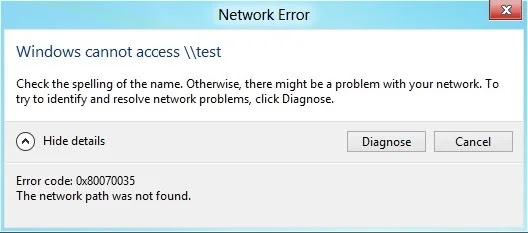
Network path was not found

If you have have been into error code 0x80070035 The network path was not found. Try that the drive or folder you are trying to access was shared. This error can be occured like this in any windows version. Network path was not found Windows 10 Network path was not found Windows 7 Network path was not found SQL Server Network path was not found Windows 10 join domain Network path was not found error Network path was not found when trying to access a file share
Also check the share name. After sharing the folder, network path will be created.

How to check Windows 10 Start Menu | Windows 10 Start menu Frozen

It can be checked as many problems of different versions of Windows and Windows 10 are due to corrupt files, Open the task manager and type "PowerShell". You have to run this with administrative privileges. Type "sfc /scannow" and press enter

Monday, September 21, 2020

Router issue or router not working

If your router is not working you have to plug an ethernet cable into your router nd see if you get the signal in your laptop or desktop
If restarting does not solve the problem, try setting it up again completely
There is a small button as "reset", try to held down it and see if the issue has been solved.

How to fix printer connection and printing problems in Windows 10

If you are facing printer connection issue any of the below issue
printer issue in windows 10 printer not working in windows 10 printer error in windows 10 printer not working after update in windows 10 printer sharing not working in windows 10 printer in error state in windows 10 printer spooler error in windows 10 printer offline problem in windows 10
Try the following things. 1. You have to first unplug and restart the printer 2. There could be any wire connection issue, check the cables 3. uninstall and reinstall your printer 4. There could be some driver issue therefore install the latest driver for your printer 5. Clear and reset the printer spooler 6. run the printing troubleshooting 7. Fix printer problem and set printer status to online

The Mouse/Keyboard stopped working

Issue: Mouse/Keyboard has stopped working in my laptop/computer
Solutions If your keyboard or mouse is not working you have to check the wire of your keyboard and mouse if they are properly connected.
If you are using wireless mouse and keyboard, you have to check that their batteries are charged and they are turned on to be working.